DevOps Service Monitor

Get started with OpsMon

A lightweight, privacy-first tool to monitor your servers and services — entirely on your device.

🔒 No account required ☁️ No cloud 📡 No agent 🛡 No tracking
Download on Google Play
Overview

What can you monitor?

OpsMon supports four types of monitors. Each runs locally on your device with no backend required.

🔒

TLS / HTTPS

Track SSL/TLS certificate expiry. Stay ahead before certificates expire.

📡

TCP Port

Check host reachability. Know immediately when a service goes down.

Latency

Measure response time. Set your own warning threshold to catch slowdowns early.

🌐

HTTP Status

Monitor endpoints for non-2xx responses. Follows redirects automatically.

Step 1

The Dashboard

When you open OpsMon, you'll see the main dashboard — a summary of all your monitor types with live counts.
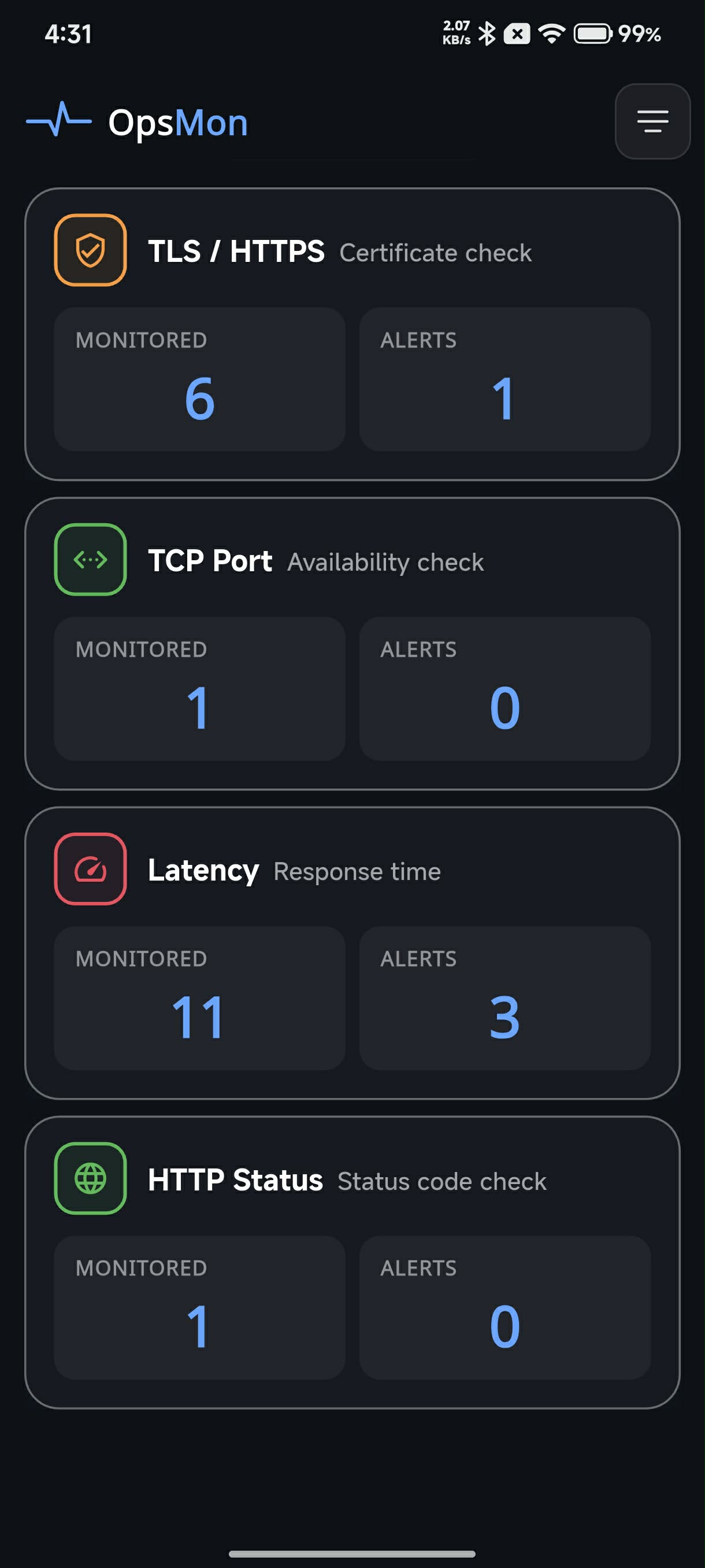
OpsMon main dashboard
1

At-a-glance status

The dashboard shows each monitor category — TLS, TCP, Latency, and HTTP — with a count of how many are being monitored and how many have triggered an alert.

Color-coded status indicators (🟢 green, 🟡 amber, 🔴 red) let you immediately spot any issues across your infrastructure.

Tip: Tap any category card to drill into individual monitors for that type.
Step 2

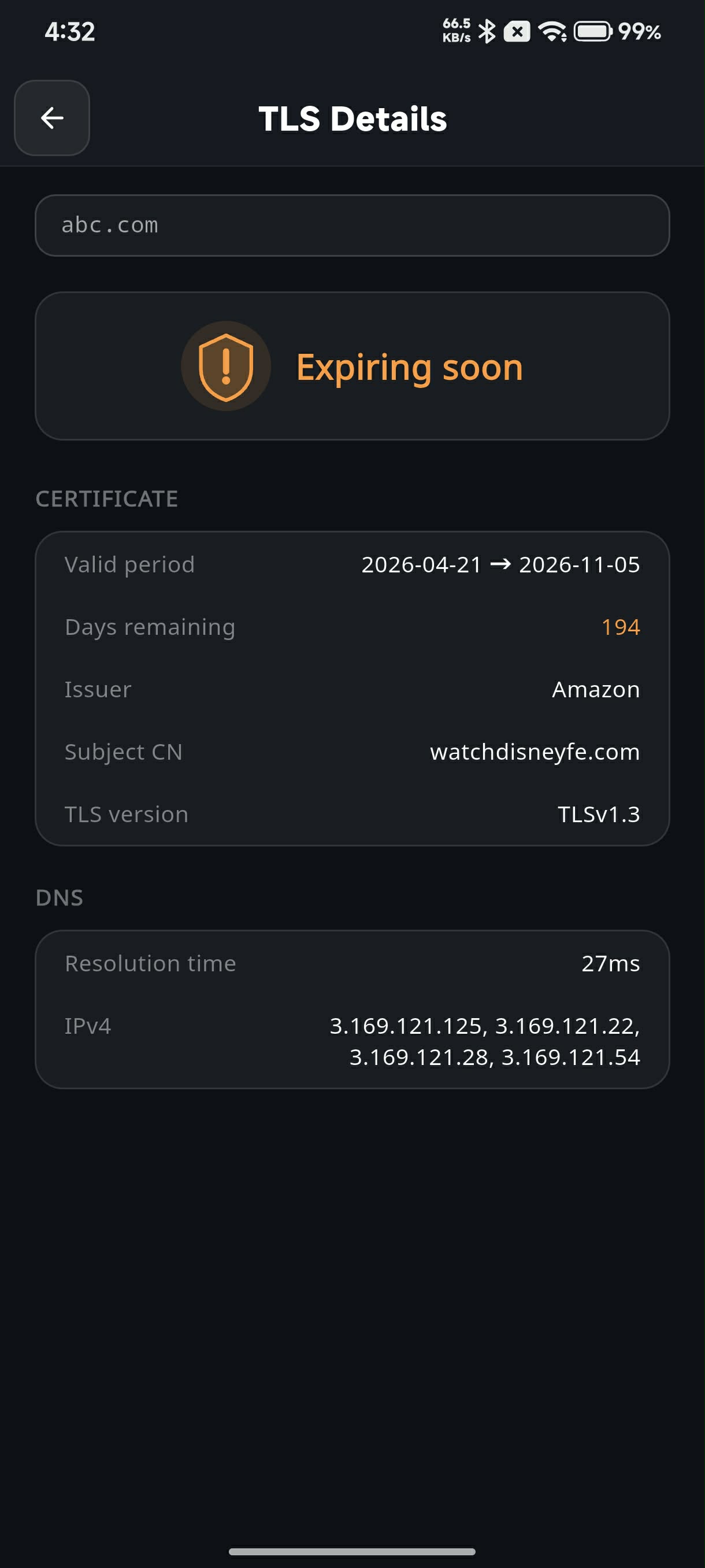
TLS Certificate Monitoring

Track the expiry of your SSL/TLS certificates and get warned before they cause an outage.

TLS certificate details
2

Certificate details & expiry

Tap into any TLS monitor to see the full certificate details — valid period, days remaining, issuer, Subject CN, TLS version, and DNS resolution info.

An Expiring soon status (amber) warns you before the certificate actually expires, giving you time to renew.

Tip: Add all your production domains here so you never get caught by an unexpected certificate expiry.
Step 3

TCP Port Availability

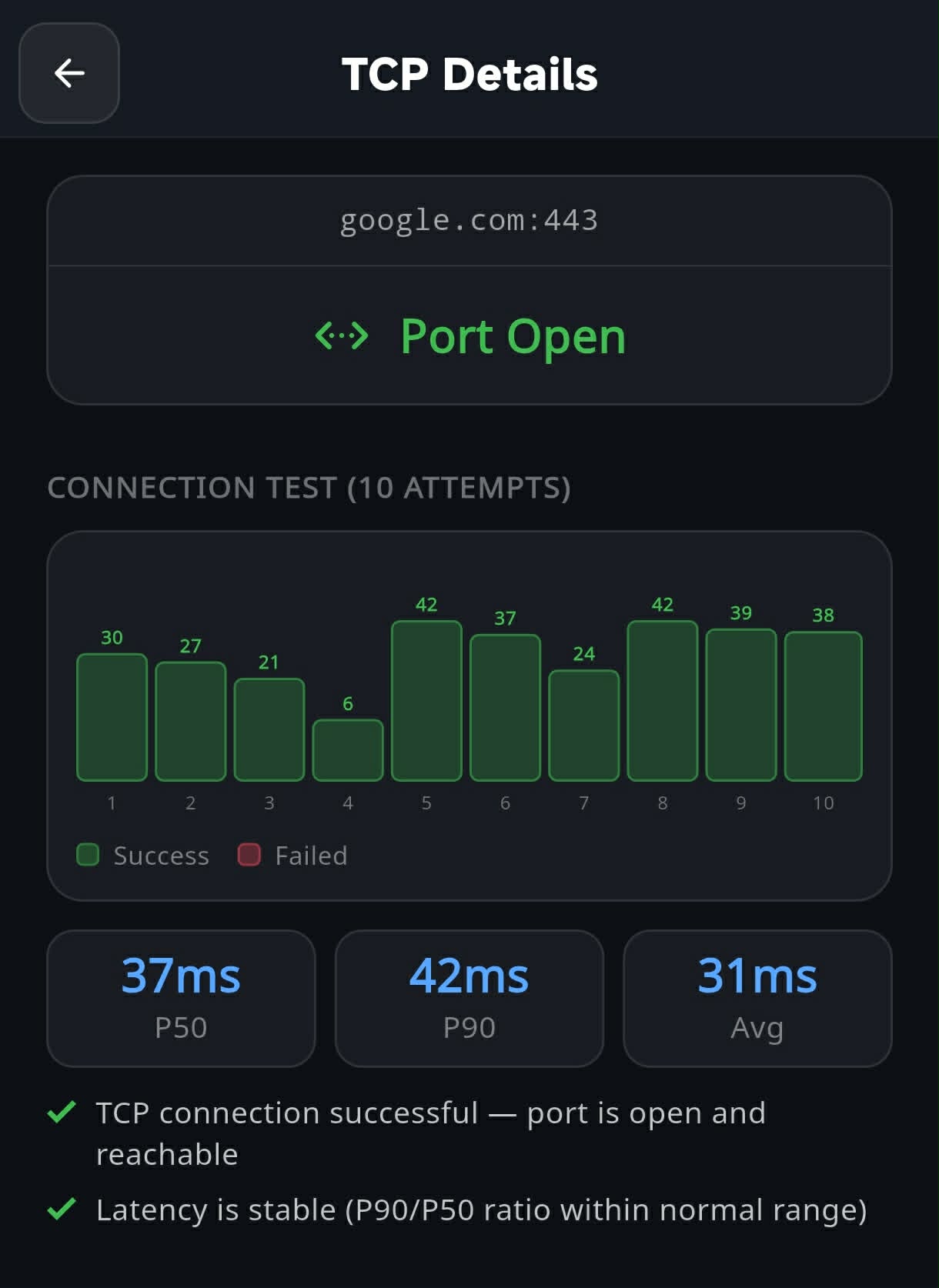
Check if a host and port are reachable. Useful for verifying that your services are actually accepting connections.

TCP port details
3

Connection test results

OpsMon runs 10 connection attempts and shows you the result of each one — green for success, red for failure — along with P50, P90, and average latency.

Actionable suggestions at the bottom tell you what the results mean, so you don't need to interpret the numbers yourself.

Tip: Use this to monitor non-HTTP services like databases, SSH, or custom TCP ports.
Step 4

HTTP Endpoint Monitoring

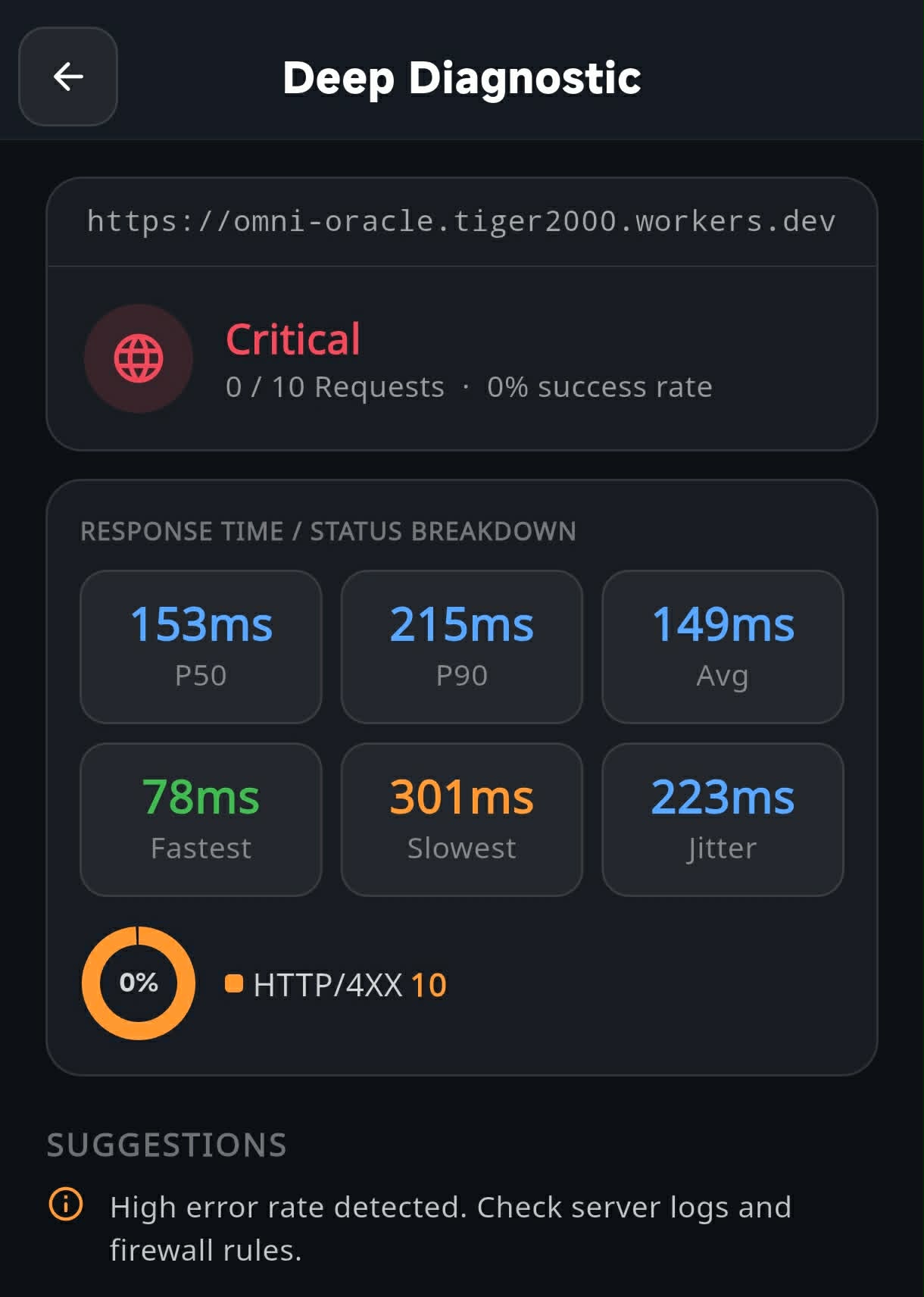
Monitor your HTTP endpoints for non-2xx status codes and detailed response time breakdowns.

HTTP deep diagnostic
4

Deep diagnostic view

The deep diagnostic view shows P50, P90, average, fastest, slowest, and jitter response times across 10 requests — giving you a clear picture of your endpoint's health.

Status code breakdown (2XX, 4XX, 5XX) is shown with a progress bar, so you can quickly see the success rate.

Tip: A high jitter value may indicate network instability even when average latency looks fine.
Step 5

Latency Diagnostic

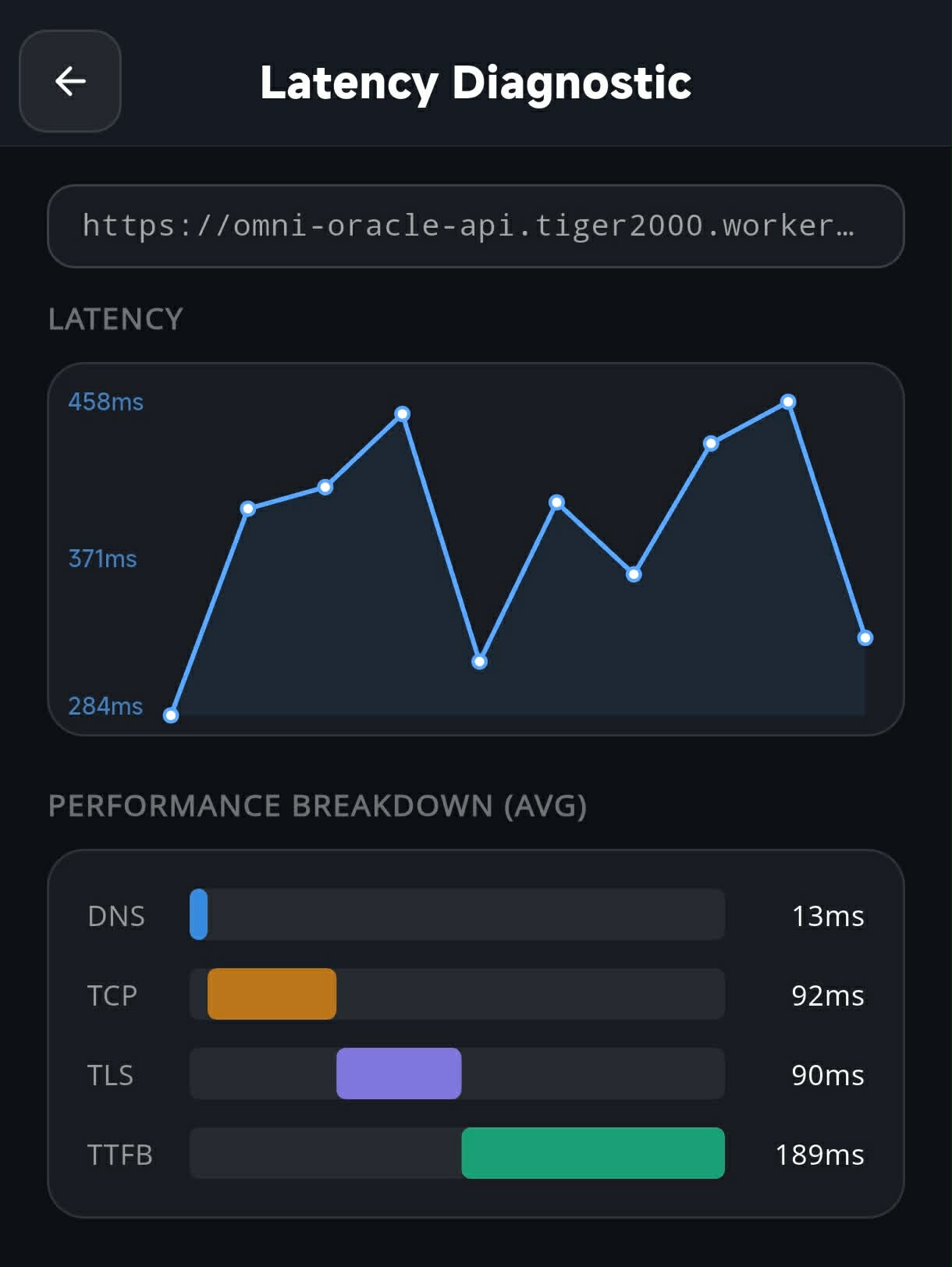
Measure and break down response times across all connection phases — DNS, TCP, TLS, and TTFB.

Latency diagnostic breakdown
5

Phase-by-phase breakdown

The latency diagnostic breaks down each request into its component phases — DNS resolution, TCP handshake, TLS negotiation, and Time to First Byte (TTFB) — visualized as a stacked bar chart.

This makes it easy to pinpoint exactly where slowdowns are happening, whether it's DNS, your server, or the network.

Tip: If DNS time is consistently high, consider switching to a faster DNS resolver on your device.
Privacy

100% local. Zero data shared.

OpsMon is built with privacy at its core. Everything runs on your device.

🛡

What OpsMon does NOT do

OpsMon does not collect or store any of your monitoring data — your servers, endpoints, and credentials never leave your device. Ad serving is provided by Google AdMob, which may collect device information for advertising purposes in accordance with Google's privacy policy.

No account No cloud storage No analytics No agent on server No subscription No data leaving your device