English
🇺🇸 English
🇹🇼 繁體中文
🇨🇳 简体中文
🇯🇵 日本語
🇰🇷 한국어
🇩🇪 Deutsch

Solutions & Use Cases

OpsMon in the Real World

Step-by-step monitoring setups for common infrastructure scenarios — with exact configuration parameters.

Back to User Guide
📡 A · TCP Port 🌐 B · HTTP Status ⏱ C · Latency 🔒 D · TLS Certificate
Scenario A · TCP Port Monitor

Mail Server Port Availability

Verify that your mail server's SMTP and IMAP ports are open and accepting connections. A port being "open" means the server is listening — TCP monitoring catches infrastructure-level failures before they affect your users.
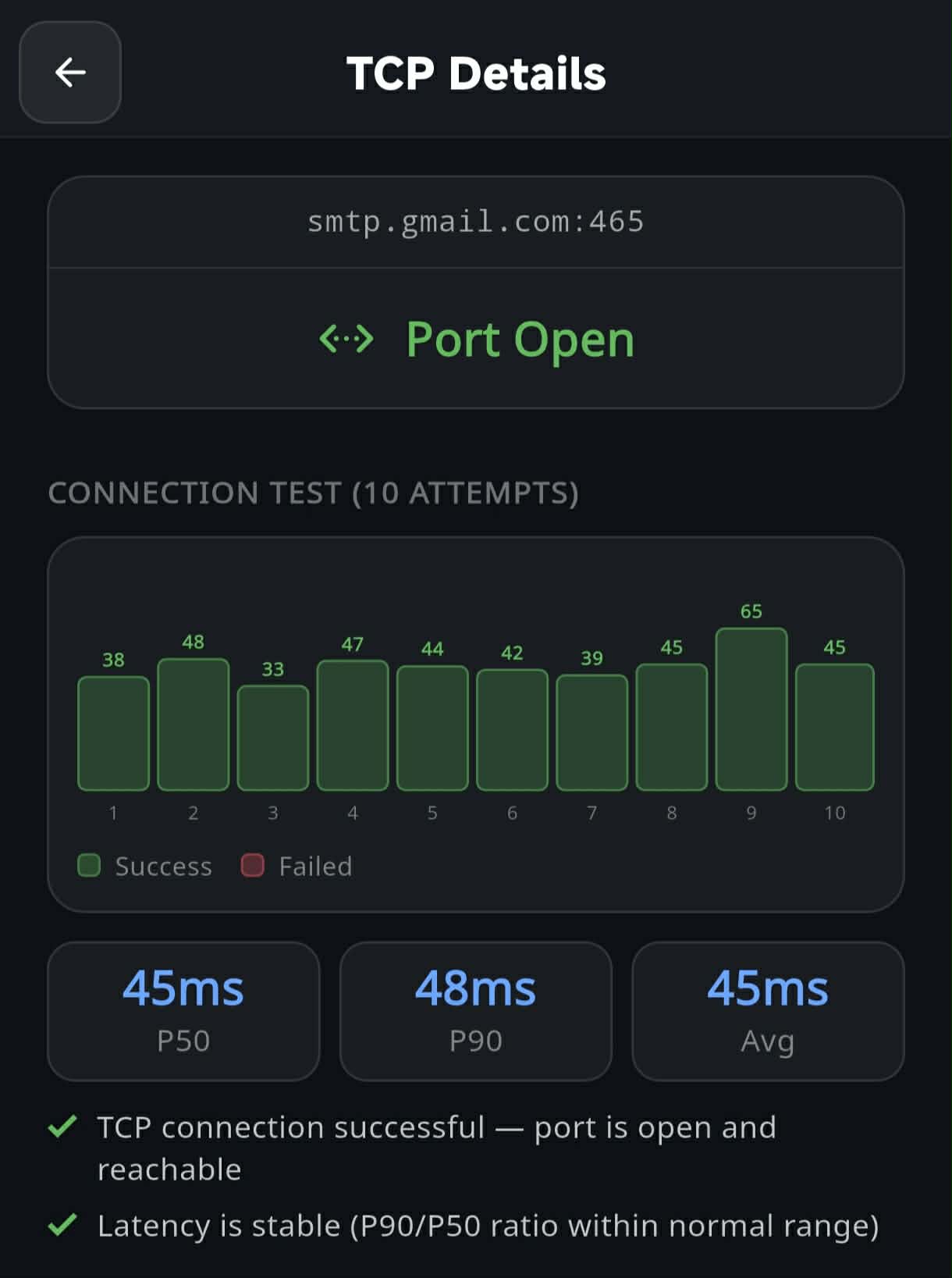
TCP port test results

How to set it up

  • 1Open OpsMon → tap TCP on the dashboard.
  • 2Tap + Add to create a new TCP monitor.
  • 3Enter smtp.gmail.com as the Host and 465 as the Port.
  • 4Tap Save. OpsMon immediately runs 10 connection attempts and displays results.
  • 5Check the result bars — all green means the port is healthy. Any red bars indicate intermittent or full connection failures.
Note: A successful TCP connection only confirms the port is open. It does not verify that the mail protocol (SMTP/IMAP) itself is functioning correctly — use HTTP monitoring for application-level health checks.
⚙️ Recommended Configuration
FieldValueNotes
Hostsmtp.gmail.comGmail SMTP server. Replace with your own mail server hostname.
Port465 / 993465 = SMTPS (send mail), 993 = IMAPS (receive mail). Monitor both for full coverage.
EnabledONKeep enabled to run checks continuously.
Tip: Add a second monitor for port 993 (IMAP) so you cover both outbound and inbound mail paths. If port 465 fails but 993 is fine, the issue is likely with your SMTP service specifically.
Scenario B · HTTP Status Monitor

API Endpoint Health Check

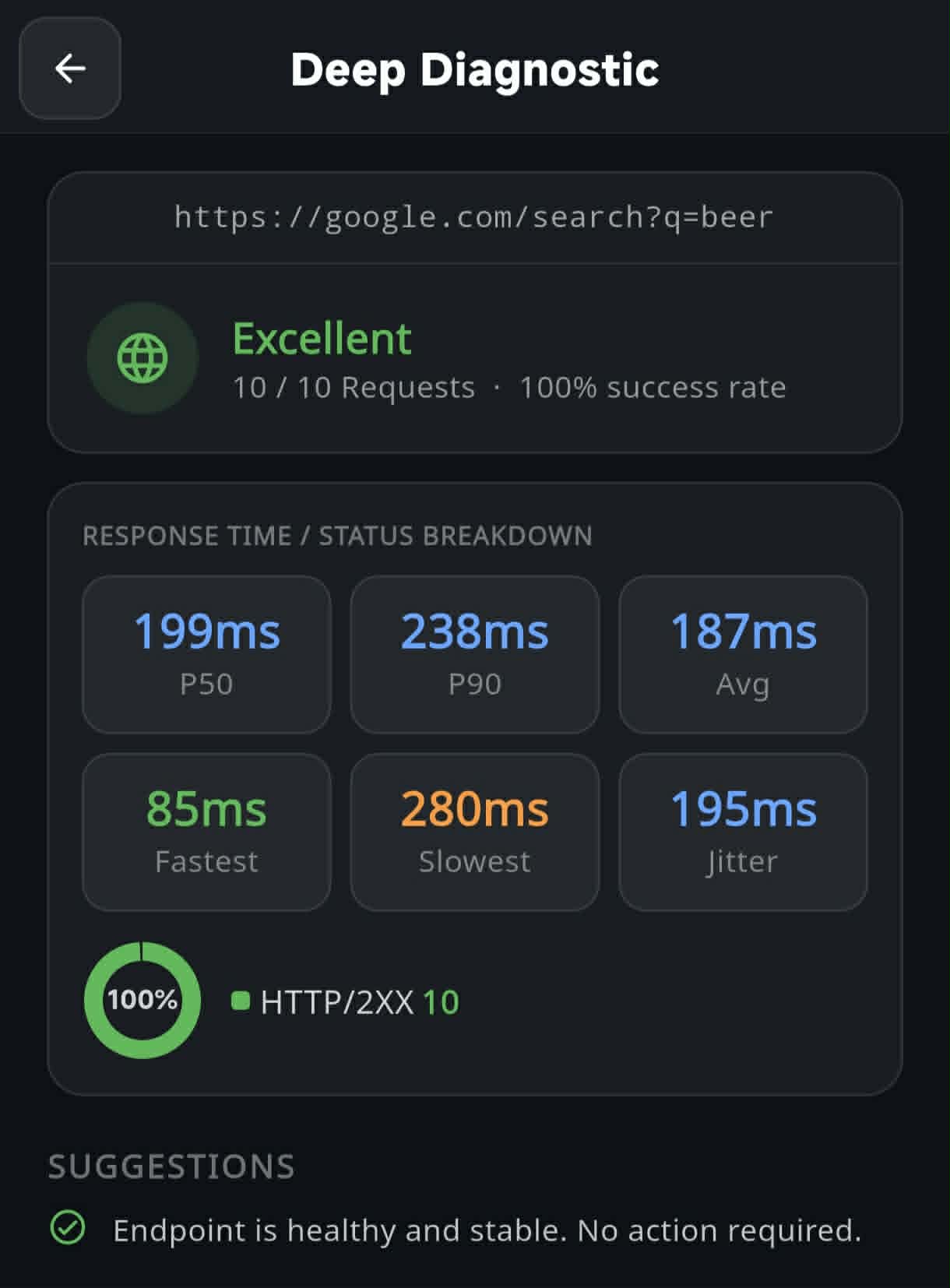
Monitor your REST API or web service for unexpected status codes. Unlike TCP, HTTP monitoring checks whether the application layer is responding correctly — catching 4XX errors, 5XX server failures, and broken redirects.

HTTP status monitoring

How to set it up

  • 1Open OpsMon → tap HTTP on the dashboard.
  • 2Tap + Add to create a new HTTP monitor.
  • 3Enter the full URL including https://, e.g. your API health endpoint.
  • 4Set a Warning threshold — OpsMon shows 🟡 WARNING if response time exceeds this value (ms).
  • 5Set a Timeout — OpsMon shows 🔴 FAILED if response time exceeds this value (ms).
  • 6Tap Save. OpsMon runs 10 requests and shows the status code distribution.
Note: OpsMon follows redirects automatically. If your endpoint returns 301/302, it will follow through to the final destination and report that status code. Ensure the final URL still returns 2XX.
⚙️ Recommended Configuration
FieldValueNotes
URLhttps://yourapi.com/healthUse your API's dedicated health check endpoint if available. Must include https://.
Warning threshold (ms)1000🟡 WARNING shown if response exceeds this. 1000ms is a reasonable default for most APIs.
Timeout (ms)3000🔴 FAILED shown if response exceeds this. Set 3–5× your warning threshold.
EnabledONKeep enabled to monitor continuously.
Tip: For internal APIs behind a VPN, run the check while connected to the VPN. OpsMon issues all requests from your device, so your network conditions directly affect the results.
Scenario C · Latency Monitor

Network Latency Diagnostics

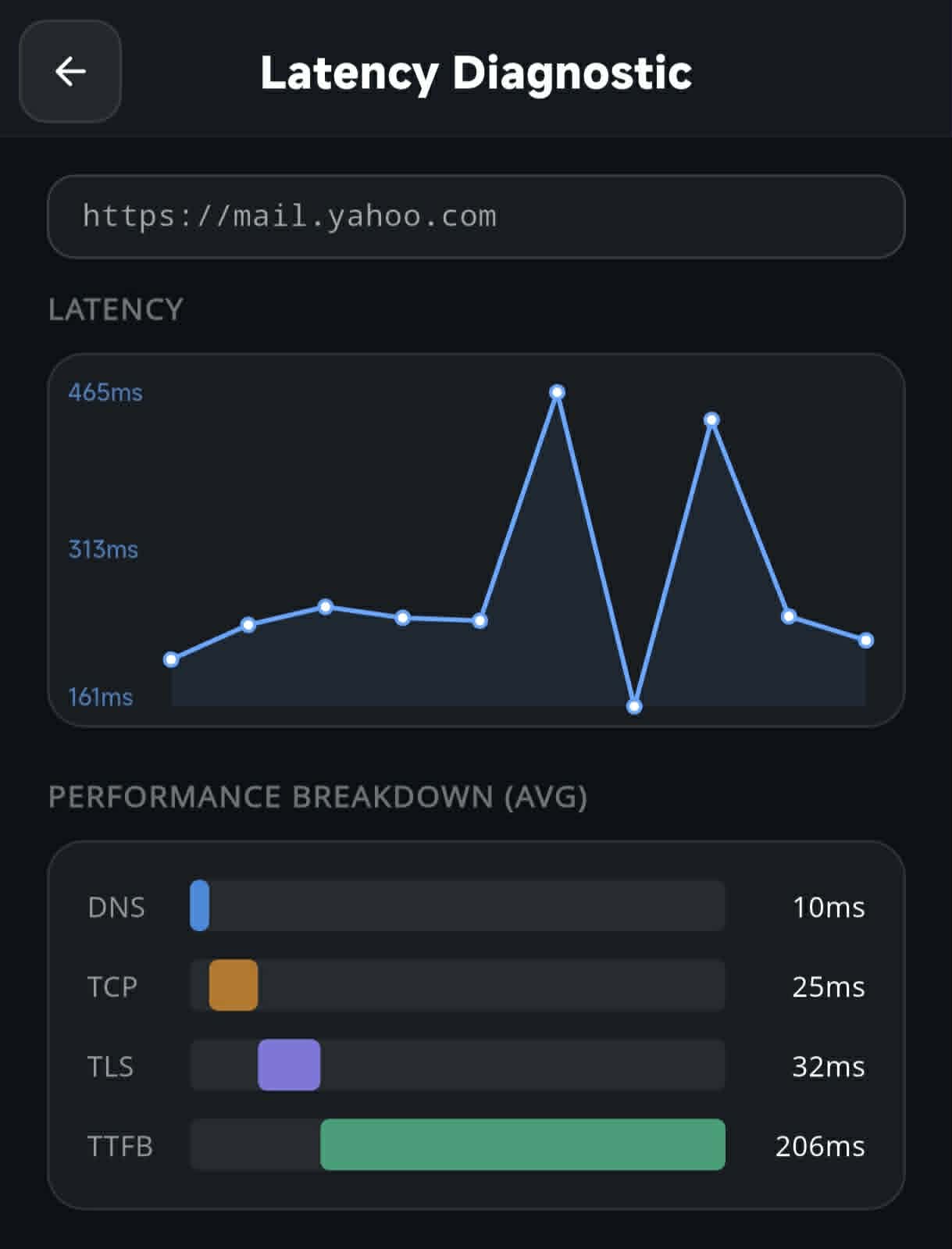
Identify exactly where delays occur in the connection chain — DNS resolution, TCP handshake, TLS negotiation, or server response (TTFB). This goes beyond simple ping: it tells you which phase to investigate.

Latency phase breakdown

How to set it up

  • 1Open OpsMon → tap Latency on the dashboard.
  • 2Tap + Add to create a new Latency monitor.
  • 3Enter the target URL, e.g. https://mail.yahoo.com.
  • 4Set a Warning threshold — shown in 🟡 WARNING when P50 latency exceeds this value (ms).
  • 5Set a Timeout — requests exceeding this are counted as failures.
  • 6Tap Save. The stacked bar chart breaks down DNS, TCP, TLS, and TTFB for each of the 10 requests.
Note: Latency results vary based on your current network conditions. Run checks on both Wi-Fi and mobile data to compare. High DNS values on mobile may indicate your carrier's DNS is slow — consider changing your DNS resolver in device settings.
⚙️ Recommended Configuration
FieldValueNotes
URLhttps://mail.yahoo.comAny HTTPS endpoint. Use a stable, always-online host for baseline comparison.
Warning threshold (ms)1000🟡 WARNING if response exceeds this. Adjust based on your expected latency — lower for LAN targets, higher for overseas hosts.
Timeout (ms)3000🔴 FAILED if no response within this window. Requests that time out are excluded from P50/P90 calculations.
EnabledONKeep enabled for continuous baseline tracking.
📊 How to Interpret Phase Timings
PhaseHigh value means…Action
DNSDNS resolver is slow or overloadedSwitch to 1.1.1.1 or 8.8.8.8 in device settings
TCPNetwork routing or server is far/busyCheck network quality; consider CDN for global users
TLSCertificate negotiation is slow (older cipher or distant server)Ensure server supports TLS 1.3; optimize cipher suite
TTFBServer processing is slow (app, DB, heavy computation)Profile your backend; add caching; check DB query times
Tip: P50 is your "typical" experience; P90 is what your slowest users see. If P90 is much higher than P50, you have high jitter — investigate network stability rather than raw speed.
Scenario D · TLS Certificate Monitor

SSL Certificate Expiry Tracking

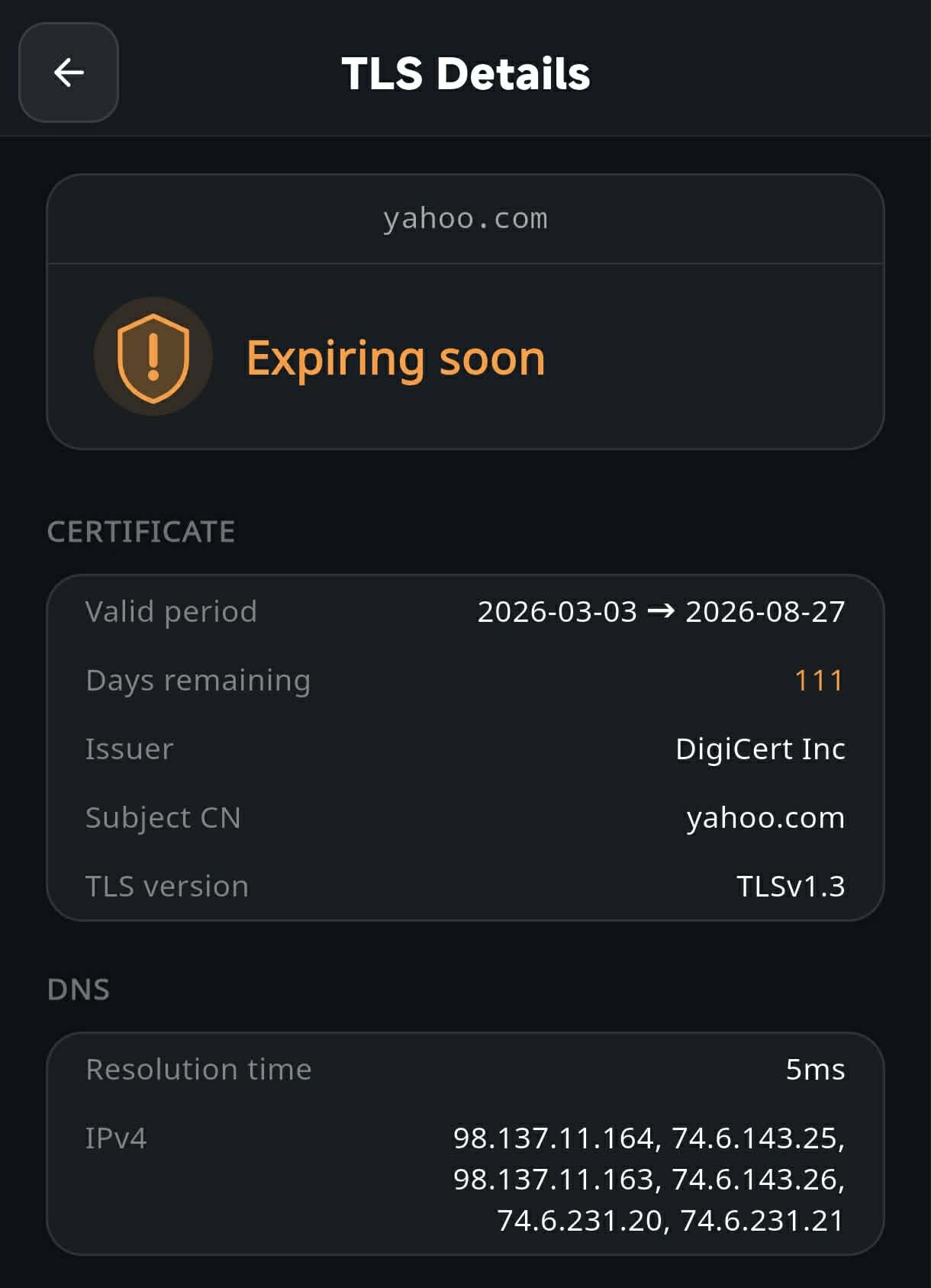
An expired TLS certificate causes immediate HTTPS failures for all visitors — browsers show scary "Not Secure" warnings and most users will leave. OpsMon monitors expiry dates and warns you weeks in advance so renewals never catch you off guard.

TLS certificate expiry warning

How to set it up

  • 1Open OpsMon → tap TLS on the dashboard.
  • 2Tap + Add to create a new TLS monitor.
  • 3Enter the Host, e.g. yahoo.com. No need to include https://.
  • 4Enter Port — use 443 for standard HTTPS.
  • 5Set Warn before expiry (days). OpsMon shows 🟡 when the certificate has fewer than this many days remaining.
  • 6Tap Save. OpsMon connects and retrieves the full certificate chain immediately.
Note: Wildcard certificates (e.g. *.example.com) cover all subdomains under one expiry date. You only need one monitor per wildcard cert — but it's good practice to also monitor the root domain separately.
⚙️ Recommended Configuration
FieldValueNotes
Hostyahoo.comEnter hostname only, without https://. Add each critical domain separately.
Port443443 is standard HTTPS. Use 8443 or custom ports if your server is non-standard.
Warn before expiry (days)120🟡 WARNING shown when ≤ 120 days remain. 120 days gives ample time to renew, especially for certificates with 90-day validity (e.g. Let's Encrypt).
EnabledONKeep enabled so OpsMon checks the certificate on every run.
🔒 Certificate Status Reference
StatusIndicatorMeaning
Valid🟢Certificate is valid and has more days remaining than your warning threshold.
Expiring soon🟡Certificate will expire within your configured warning window. Time to renew.
Expired / Error🔴Certificate has expired, is self-signed (untrusted), or the host could not be reached.
Tip: Set the warning threshold to at least 30 days more than your certificate authority's processing time. For Let's Encrypt (90-day certs), 120 days gives you a full renewal cycle as buffer. For 1-year commercial certs, 60 days is usually sufficient.